GitHub SSH 克隆在 22 端口断开时,改走 443 端口
给 GitHub 添加 SSH 公钥后,git clone 仍然可能失败。错误信息看起来像权限问题:
git clone git@github.com:<owner>/<repo>.gitCloning into '<repo>'...
Connection closed by 140.82.116.3 port 22
fatal: Could not read from remote repository.
Please make sure you have the correct access rights
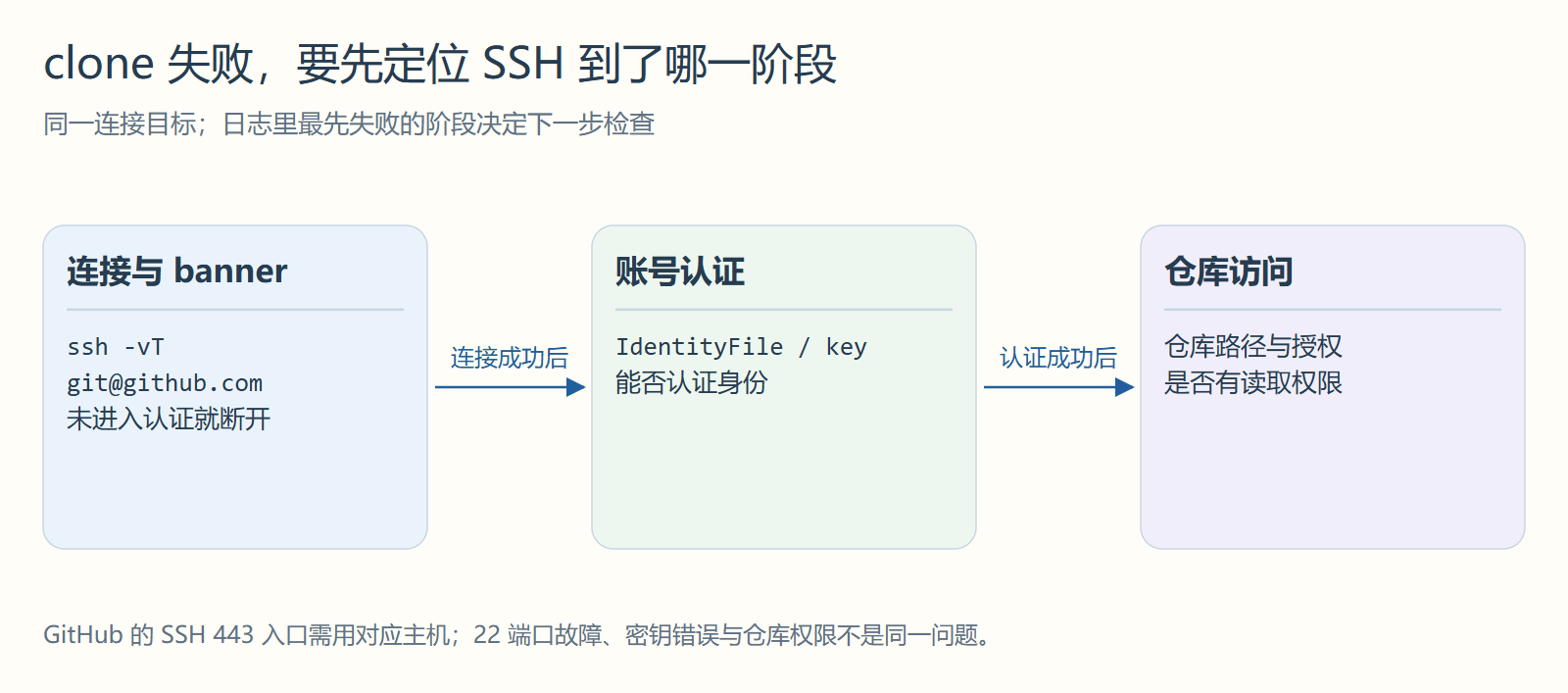
and the repository exists.这类错误要先看连接断在哪一层。如果 SSH 还没走到公钥认证阶段,继续反复生成 key、删除 key、重新粘公钥,大概率不会改变结果。当前案例的关键证据是:github.com:22 能建立 TCP 连接,但 SSH 握手在 banner 阶段超时;同一网络下改连 ssh.github.com:443 后,GitHub 能正常识别账号。
先确认 SSH 配置实际用了哪把 key
OpenSSH 会按 ~/.ssh/config 匹配 Host,再决定真实连接地址、端口、用户和私钥。先看解析结果,比只看配置文件更可靠:
ssh -G github.com | grep -E '^(hostname|port|user|identityfile|identitiesonly) 'Windows PowerShell 里可以用:
ssh -G github.com | Select-String -Pattern '^(hostname|port|user|identityfile|identitiesonly) '如果已经给 GitHub 指定了专用 key,输出里应该能看到类似内容:
user git
hostname github.com
identitiesonly yes
identityfile ~/.ssh/id_ed25519
这里有两个点值得先排除:
user应该是git,不是 GitHub 用户名。identityfile应该指向本机真实存在的私钥文件,GitHub 页面里粘贴的是对应的.pub公钥。
这一步只能证明客户端准备使用哪把 key,还不能证明 GitHub 已经接受它。要继续看 SSH 握手能不能走到认证阶段。
22 端口的问题会卡在 banner 阶段
排障时可以打开 SSH 调试日志:
ssh -T -vvv -o BatchMode=yes -o ConnectTimeout=10 git@github.com当前案例里,调试日志的关键片段是:
Connecting to github.com [140.82.116.3] port 22.
Connection established.
identity file ~/.ssh/id_ed25519 type 3
Local version string SSH-2.0-OpenSSH_for_Windows_9.5
Connection timed out during banner exchange
Connection to 140.82.116.3 port 22 timed out
Connection established 说明 TCP 层连上了;Connection timed out during banner exchange 说明 SSH 协议握手没有等到服务端 banner。这个阶段还没有进入「服务端接受哪把公钥」的判断。
这和典型的公钥权限错误不一样。公钥没加对、账号没有仓库权限,通常会走到认证阶段,然后出现 Permission denied (publickey)。当前错误发生得更早,优先怀疑网络链路、代理、防火墙或运营商环境对 GitHub SSH 22 端口处理不稳定。
GitHub 支持把 SSH 改走 443
GitHub 提供了 ssh.github.com:443。GitHub 官方文档给出了这种配置方式。这里仍然跑 SSH,只是借用通常用于 HTTPS 的端口,并没有把协议变成 HTTPS;限制协议的代理或公司网络仍可能拒绝它。公司设备上应先确认这种连接方式符合网络策略。
可以把 ~/.ssh/config 里的 GitHub 段改成:
Host github.com
  HostName ssh.github.com
  Port 443
  User git
  IdentityFile ~/.ssh/id_ed25519
  IdentitiesOnly yes
这里的 Host github.com 仍然匹配日常使用的 remote URL:
git@github.com:<owner>/<repo>.git真正变化的是 HostName 和 Port。SSH 客户端看到 github.com 这个 host 后,会按配置实际连到 ssh.github.com:443。所以仓库 remote 不需要改,团队文档、脚本和 clone 命令也可以继续保持 GitHub 默认 SSH URL。
第一次连接 ssh.github.com:443 时,可能会遇到 host key 确认。当前看到的 Ed25519 指纹是:
SHA256:+DiY3wvvV6TuJJhbpZisF/zLDA0zPMSvHdkr4UvCOqU这个指纹和 GitHub 官方 SSH key fingerprints 里列出的 Ed25519 指纹一致。确认匹配后,可以接受并写入 known_hosts。
如果已经通过可信渠道核对目标和指纹,想让命令自动记录首次出现的 host key,可以这样测:
ssh -T -o StrictHostKeyChecking=accept-new git@github.com成功时 GitHub 会返回类似:
Hi <username>! You've successfully authenticated, but GitHub does not provide shell access.这个命令返回码可能不是 0,因为 GitHub 不提供交互 shell。排障时更应该看输出内容:只要出现 successfully authenticated,就说明 key、账号和 SSH 链路已经通了。
再验证仓库权限
SSH 认证成功只能证明账号识别没问题,还要确认这个账号能读目标仓库。比直接重新 clone 更轻的验证方式是:
git ls-remote git@github.com:<owner>/<repo>.git HEAD能返回 HEAD 对应的提交哈希,就说明远端仓库存在,并且当前账号有读取权限:
17b877c1ba6b633b706d83b2fbcd1d79b436009d HEAD这一步通过后,再执行:
git clone git@github.com:<owner>/<repo>.git如果 clone 成功,后续 fetch、pull、push 也会沿用同一段 SSH config。只要 remote 仍然写 git@github.com:...,底层连接就会继续走 ssh.github.com:443。
其他 Git 平台仍然按自己的配置走
SSH config 是按 Host 分段匹配的。只给 GitHub 写 Port 443,不会影响 Gitee、GitLab 或其他 Git 服务器。
例如下面这段 Gitee 配置没有写 Port:
Host gitee.com
  HostName gitee.com
  User git
  IdentityFile ~/.ssh/id_ed25519
  IdentitiesOnly yes
OpenSSH 没看到 Port 时,会默认走 22。同一把私钥可以同时给 GitHub 和 Gitee 使用,但每个平台的连接地址和端口仍然可以单独配置。
排查顺序
以后遇到 Could not read from remote repository,我会按这个顺序看:
- 先跑
ssh -G github.com,确认 SSH 实际使用的User、HostName、Port和IdentityFile。 - 再跑
ssh -T -vvv git@github.com,看错误发生在 banner、host key、publickey 认证还是仓库权限阶段。 - 如果
github.com:22卡在 banner 阶段,优先把 GitHub 改到ssh.github.com:443。 - 如果已经走到
Permission denied (publickey),再回头检查公钥是否粘到正确 GitHub 账号、私钥是否匹配、仓库是否授权。 - SSH 认证通过后,用
git ls-remote git@github.com:<owner>/<repo>.git HEAD验证仓库权限,再重新 clone。
这次真正有用的判断是把错误定位到更具体的一层:22 端口能建立 TCP 连接,但 SSH banner 交换不稳定。改走 GitHub 官方支持的 443 入口后,仓库 URL 不变,公钥也不用重建,只需要让 SSH 客户端换一条更稳的连接路径。